 How-to
QuickBooks Integration for Field Service: A 2026 Guide
Table of Contents
- Why QuickBooks Integration Matters for Field Service Companies
- Field Service Management Software Compatible with QuickBooks
- QuickBooks Online Integration for Field Service
- QuickBooks Desktop Field Service Integration
- QuickBooks Job Costing for Field Service Teams
- Setting Up Two-Way Sync: Data Mapping and Conflict Resolution
- Common Integration Failures and How to Fix Them
- Frequently Asked Questions
Last Updated: October 11, 2026
Why QuickBooks Integration Matters for Field Service Companies
A quickbooks integration field service solution eliminates the manual data entry that drains time and creates errors. According to research on field service automation, teams that automate data flow between systems reduce administrative overhead by hours per week.
Most businesses use QuickBooks and field service software as separate systems: technicians complete jobs in one app, office staff re-enter data in QuickBooks, and accountants reconcile discrepancies. This pattern repeats across hundreds of service businesses, from HVAC to plumbing to electrical contractors.
A proper quickbooks integration field service system syncs customer records, job details, invoices, and payments automatically. Technicians update job status in the field, QuickBooks reflects it instantly, customers receive invoices faster, and accountants have clean financial data without manual verification.
Field Service Management Software Compatible with QuickBooks
Field service management software must handle core workflows: customer synchronization, job creation and tracking, invoice generation, and payment recording. Not every platform offers true two-way sync with QuickBooks; some only push data one direction, leaving accounting teams to manually reconcile gaps.
The best solutions sync customers, jobs, products, and invoices bidirectionally. When a customer updates their phone number in QuickBooks, it reflects in the field app. When a technician marks a job billable, the invoice generates automatically in QuickBooks.
Verify that your chosen platform maintains active QuickBooks API integration and updates it when Intuit releases new features. Desktop users face limited integration options since the software was designed for on-premise use.
| Capability | Essential | Why It Matters |
|---|---|---|
| Two-way customer sync | Yes | Prevents duplicate records and keeps contact info current |
| Job-to-invoice automation | Yes | Eliminates manual invoice creation and reduces billing delays |
| Product/service item sync | Yes | Ensures accurate costing and prevents pricing mismatches |
| Tax rate synchronization | Yes | Maintains compliance and reduces accounting reconciliation |
| Payment recording | Yes | Closes the loop between field completion and cash receipt |
QuickBooks Online Integration for Field Service
QuickBooks Online integration for field service works through OAuth 2.0 authentication, which grants your field service platform secure, token-based access to your QuickBooks account without storing your password.
How Authentication Works
When you connect your field service app to QuickBooks Online, you're redirected to Intuit's login page. You authenticate and approve specific permissions: read/write access to customers, invoices, items, payments, and classes.
Step-by-Step Connection Process
- Locate the QuickBooks integration settings in your field service app (usually under Settings > Integrations).
- Click "Connect to QuickBooks Online" and select your QuickBooks realm (company file).
- Review the permission scope. Legitimate integrations request specific data types (customers, invoices, items) but should not request payroll, tax forms, or employee data.
- Approve the connection by clicking "Authorize" on Intuit's consent screen.
- Verify the connection shows "Connected" and displays your QuickBooks company name and realm ID.
- Test by creating a test customer in the field app and confirming it appears in QuickBooks within 2-5 minutes.
Permissions and Data Access Scopes
Most field service platforms request these core permissions: Read/Write Customers, Invoices, Items, and Payments; and Read Classes.
Real-Time Data Availability
QuickBooks Online's cloud-based architecture means data syncs within minutes of creation. When a technician marks a job billable, the invoice appears in QuickBooks within 2-5 minutes.
Monitoring Connection Health
QuickBooks Desktop Field Service Integration
QuickBooks Desktop integration faces technical constraints because Desktop was designed for on-premise use. Integrations typically require middleware or specialized connectors that add complexity and potential failure points. Many field service platforms have discontinued Desktop support entirely. If you're committed to Desktop, verify that your chosen platform actively maintains its integration. If you're planning to migrate to QuickBooks Online, coordinate that transition with your field service platform to avoid data loss or sync disruptions.
QuickBooks Job Costing for Field Service Teams
QuickBooks job costing for field service tracks labor, materials, and overhead against specific jobs, revealing which are profitable and which drain margin. Your field service platform must map technician time, parts used, and travel to the correct job in QuickBooks. When a technician logs time or uses inventory for a job, the cost flows into QuickBooks automatically. Automation through integration makes job costing effortless, allowing you to spot pricing problems and unprofitable service types in real time. Refining these financial insights further requires synchronizing communication data, as VoIP CRM integration bridges the gap between customer interactions and the underlying service costs.
Setting Up Two-Way Sync: Data Mapping and Conflict Resolution
Two-way sync means changes in either system update the other automatically. A customer updates their address in QuickBooks; your field app reflects it. A technician marks a job complete in the field app; QuickBooks generates an invoice.
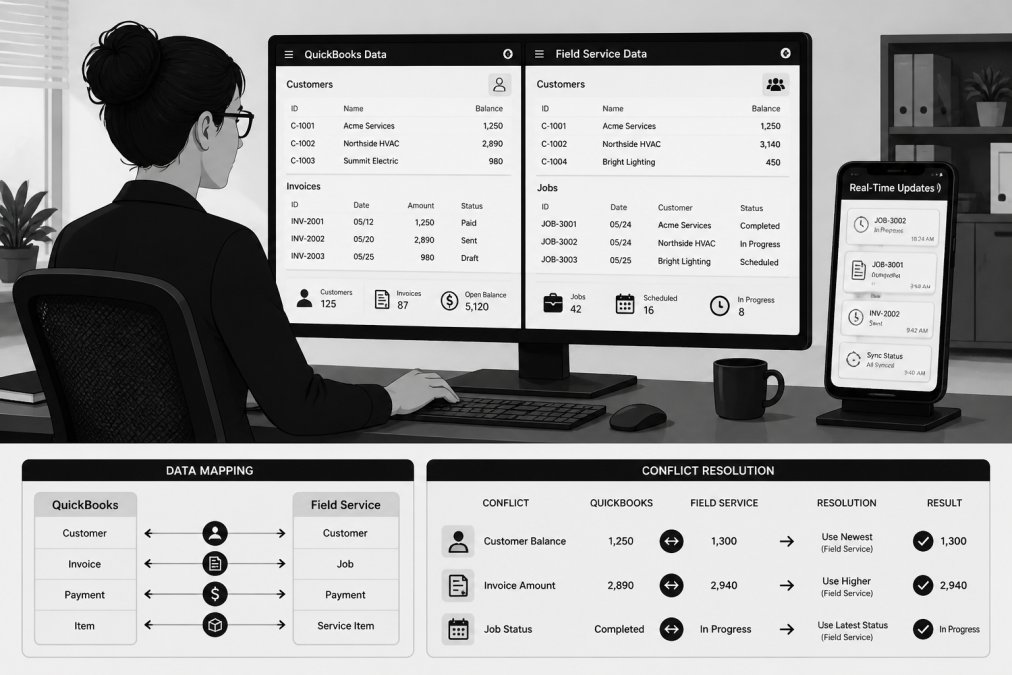
Data mapping defines which QuickBooks fields sync with which field service app fields. Misaligned mapping causes data to land in the wrong place or fail to sync. Conflict resolution determines what happens when both systems change the same record simultaneously.
Common Integration Failures and How to Fix Them
Integration failures often fail silently, data stops syncing with no alert until you notice missing invoices or duplicate customers days later. Know how to diagnose and fix problems quickly.
Authentication Token Expiration or Revocation
Symptom: Integration status shows "Connected," but no new data has synced in 24+ hours.
Diagnostic steps:
- Check your field service app's integration status page for a "Last Sync" timestamp older than 24 hours.
- Log into QuickBooks Online and go to Settings > Apps and Data > Connected Apps. If your field service platform shows "Disconnected" or "Needs Attention," your access token was revoked.
- Check your QuickBooks audit trail (Reports > Audit Trail) filtered by user. If your integration user account hasn't created records in 24 hours, authentication has failed.
Fix:
- In your field service app, navigate to Settings > Integrations and click "Reconnect" or "Re-authorize QuickBooks."
- Log in with your QuickBooks credentials and approve permissions again.
- Test by creating a new customer in the field app. It should appear in QuickBooks within 5 minutes.
- If it doesn't appear, check your field service app's error logs for specific error messages from Intuit.
Duplicate Customer Records
Symptom: The same customer appears twice in QuickBooks with slightly different names ("John Smith" and "John Smith, Inc.").
Root causes:
- Customer names differ between systems (e.g., "Smith Plumbing" vs. "Smith Plumbing LLC").
- A technician created a customer in the field app before the sync pulled existing customers from QuickBooks.
- The field service platform's deduplication logic is disabled or misconfigured.
Fix:
- Merge in QuickBooks: Use QuickBooks' merge function or manually reassign all invoices to the primary customer, then delete the duplicate.
- Prevent future duplicates: In your field service app, enable strict deduplication and set it to match by email address. Standardize customer name entry (e.g., always "Company Name" without "LLC" or "Inc.").
- Run a pre-sync audit: Before going live, export your QuickBooks customer list and share it with your team. Check this list when creating customers in the field app.
Incomplete or Missing Data in Synced Records
Symptom: Invoices sync to QuickBooks, but tax rates don't apply, job notes don't transfer, or customer phone numbers are blank.
Fix:
- Enable field mapping: In your field service app's integration settings, locate the field mapping configuration and enable sync for any fields you need (e.g., "Job Notes" → "Invoice Memo").
- Test the fix: Create a test job with the same fields and verify they now sync to QuickBooks.
- Handle unmappable fields: If a field can't be synced because QuickBooks doesn't expose it via API, add that information to the invoice memo or description instead.
Invoice Sync Delays
Symptom: A technician completes a job at 3 PM, but the invoice doesn't appear in QuickBooks until the next morning.
Root causes:
- The field service platform batches invoices for sync instead of creating them in real-time.
- The platform queues invoices if it detects a sync conflict or error.
- QuickBooks rate limits are being hit.
Fix:
- Enable real-time sync: In your field service app's integration settings, change the sync frequency from "Batch" or "Hourly" to "Real-time" or "Immediate" if available.
- If real-time isn't available: Ask your field service platform provider when they plan to support real-time invoice sync. In the interim, manually create invoices in QuickBooks for same-day jobs.
- Monitor for rate-limit errors: If you're hitting QuickBooks rate limits, contact your field service platform's support team.
Mismatched Tax Rates or Item Pricing
Symptom: A job is marked as taxable in the field app, but the invoice in QuickBooks doesn't have tax applied.
Fix:
- Resync tax rates and items: In your field service app's integration settings, look for a "Resync" or "Refresh" button for items and tax rates. Click it to pull the latest data from QuickBooks.
- Standardize pricing: Decide whether the field app or QuickBooks is the source of truth for pricing. If QuickBooks is the source, disable manual pricing edits in the field app. If the field app is the source, sync those prices to QuickBooks regularly.
- Test after fixing: Create a test job using the corrected item and tax rate, mark it complete, and verify the invoice in QuickBooks has the correct price and tax.
Preventing Silent Failures: A Verification Checklist
Run this checklist monthly to catch integration problems before they affect real data:
- Connection Status: Confirm QuickBooks integration shows "Connected" with a last sync timestamp within the last 24 hours.
- Test Customer Sync: Create a test customer in the field app and verify it appears in QuickBooks within 5 minutes.
- Test Invoice Sync: Create a test job, mark it complete, and verify the invoice appears in QuickBooks with correct fields (customer, items, tax, total).
- Audit Trail Review: In QuickBooks, go to Reports > Audit Trail and filter by the last 7 days. Look for invoices and customers created by your integration user. Investigate any gaps.
- Duplicate Check: In QuickBooks, scan for similar customer names. In your field service app, search for duplicate records. Merge any you find.
- Sync Logs: Review your field service app's sync history or error logs for the last 7 days. Look for errors marked "Failed" or "Retry." Contact support if you see patterns.
Frequently Asked Questions
What data should sync between field service software and QuickBooks?
Customer records, job details, service items and pricing, invoices, tax rates, and payment information should sync automatically. Two-way synchronization ensures changes made in the field (like job completion or service adjustments) flow into QuickBooks, while accounting updates (tax rate changes, payment confirmations) push back to your field team. This eliminates duplicate data entry and keeps both systems current.
How does QuickBooks Online integration for field service differ from Desktop?
QuickBooks Online works cloud-native with most modern field service platforms, supporting real-time syncing and mobile access. QuickBooks Desktop requires local server connections or third-party middleware, making setup more complex but offering deeper customization for established workflows. Online is faster to deploy; Desktop suits businesses with legacy systems or specific on-premise requirements.
Can field service software automatically create QuickBooks invoices?
Yes. When properly integrated, completed jobs automatically trigger invoice creation in QuickBooks with the correct customer, line items, taxes, and payment terms. This cuts invoice turnaround time from hours to seconds and reduces billing errors. Verify your integration supports custom invoice templates and tax mapping to match your accounting structure.
What happens if sync fails between my field service platform and QuickBooks?
Sync failures typically stem from authentication lapses, data mapping conflicts, or network interruptions. Most platforms log failures with error codes; check your integration dashboard for details. Common fixes include re-authenticating API credentials, resolving duplicate customer or item records, and verifying that field data matches QuickBooks field requirements. If failures persist, contact your provider's support team with the error log.